


Have you ever wanted to build an interactive dashboard directly on top of your existing Power BI semantic models, without opening Power BI Desktop or writing a single line of DAX?
With the introduction of Claude Dashboards, this is now possible. We can connect Claude to a Power BI semantic model, describe the dashboard we want in plain English, and let Claude generate the visualisations and the DAX queries behind them.
Sounds pretty good, doesn’t it?
I recently spent some time experimenting with Claude Dashboards, connecting them to Power BI semantic models through Microsoft’s Power BI Model Context Protocol (MCP) server. The results were quite interesting. I managed to build interactive dashboards using the measures, relationships and business logic already defined in my semantic models.
But getting a dashboard to work is one thing. Making it practical for a real business environment is a different story.
What happens when we share the dashboard with other users? Does Row-Level Security (RLS) still work? What permissions do users need on the semantic model? And can we connect Claude to multiple Microsoft Fabric tenants? These are some of the questions I wanted to answer.
In this blog, I go through the setup step by step, explain how the connection works, and share what I found along the way. There are a few gotchas around authentication, security, sharing and connecting to multiple tenants that we need to understand. I tested this in October 2026, using the beta version of Claude Dashboards.
You can watch the complete step-by-step demonstration on my YouTube channel:
If you prefer listening, I have also published an AI generated podcast version of the video:
What Are Claude Dashboards? #
Claude Dashboards is a feature within Claude’s Artifacts experience. We can describe the dashboard we want in plain English and connect it to external data platforms and applications.
The experience reminds me of building a web application with AI. We describe what we want, Claude builds the dashboard, and we can keep asking for changes in the same conversation.
The interesting part is that we are not limited to uploading Excel files or CSV extracts. We can connect to external data platforms, including Power BI semantic models through a custom connector.
Claude generates DAX queries against an existing semantic model and uses the results to display the data in the dashboard. We are not creating a new semantic model, rebuilding relationships, or manually exporting the complete dataset.
Having said that, there is an important point here. Not exporting the entire dataset does not mean that no data leaves Power BI. The DAX query results pass through the MCP connection for Claude to process and display. We need to keep this in mind when working with sensitive business data.
Is a Claude Dashboard interactive? #
One of the questions I noticed on social media shortly after the release of Claude Dashboards was whether the generated dashboards are interactive. The answer is yes, they can be.
However, what Claude builds is a web application. We should not expect it to automatically include all the interactions we are used to in Power BI visuals.
If we want an interactive dashboard, we should explicitly ask for it. For example, we can request dropdown filters, interactive charts, and visualisations that respond to selections on other parts of the page.
This worked in my test, although a few of the visuals did not behave quite how I expected.
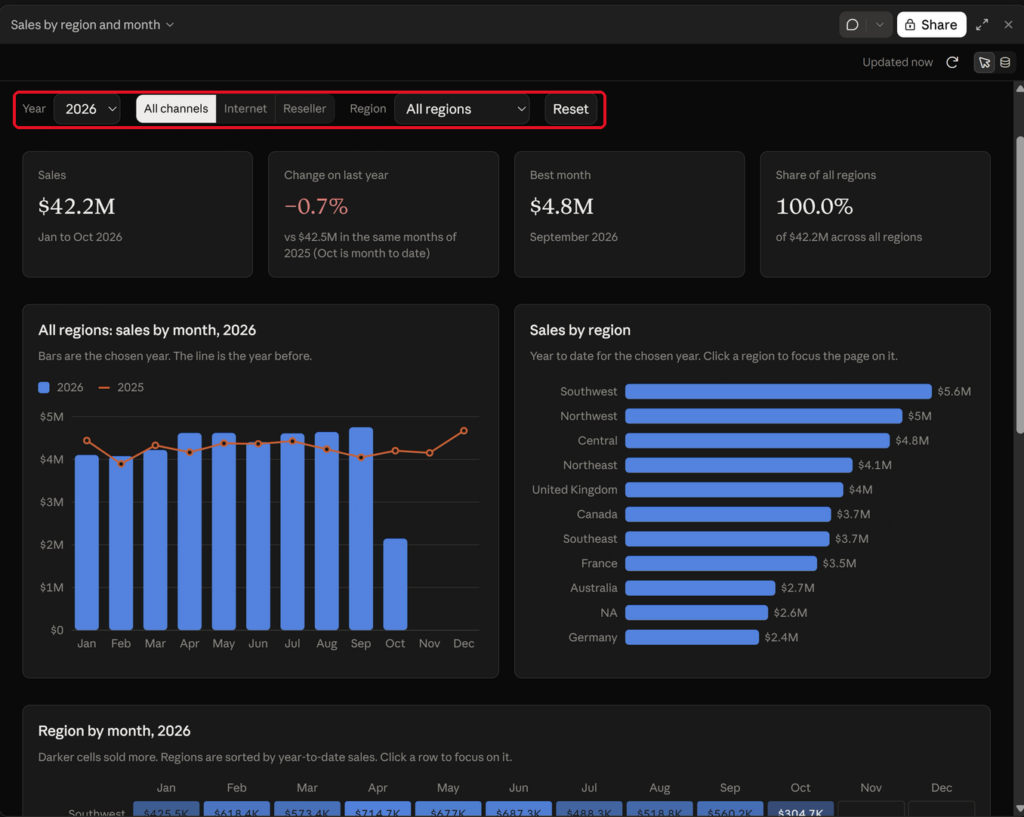
How Claude Connects to Power BI Semantic Models #
Watch the architecture explanation on YouTube at 4:45As of my October 2026 testing, Claude did not provide a dedicated built-in connector for Power BI semantic models. Instead, I used a custom connector pointing to Microsoft’s hosted Power BI Consumption MCP server.
The following diagram shows what happens, from setting up the connector to displaying the dashboard:
sequenceDiagram
    autonumber
    actor User as Dashboard author
    participant Claude as Claude Dashboard
    participant Connector as Custom connector
    participant Entra as Microsoft Entra ID
    participant MCP as Power BI MCP server
    participant Model as Semantic model

    rect rgba(120, 120, 120, 0.12)
    Note over User,Entra: One-time setup: connect Claude to Power BI
    User->>Connector: Add the MCP server URL and the app client ID
    Connector->>Entra: Delegated OAuth sign-in
    Entra-->>Connector: Access token for the signed-in account
    Note over Connector,Entra: This account becomes the query identity
    end

    rect rgba(120, 120, 120, 0.12)
    Note over User,Model: Building the dashboard
    User->>Claude: Prompt: build an interactive dashboard of sales by region and month
    Claude->>Connector: Read the model schema
    Connector->>MCP: Call the schema tool with the token
    MCP->>Model: Read tables, measures and relationships
    Model-->>Claude: Schema, returned through the MCP server and connector
    Claude->>Claude: Write the DAX queries and the dashboard page
    end

    rect rgba(120, 120, 120, 0.12)
    Note over User,Model: Every time the dashboard is opened, refreshed or filtered
    Claude->>Connector: ExecuteQuery with a DAX query
    Connector->>MCP: Forward the query with the same token
    MCP->>Model: Run the DAX as the connector account
    Model->>Model: Apply RLS for the connector account
    Model-->>MCP: Only the rows that account may see
    MCP-->>Claude: Query results leave Power BI
    Claude-->>User: Render the charts and filters
    end

    Note over Claude,Model: RLS follows the identity the connector signed in with. Validate what each shared viewer gets.
The Power BI semantic model remains responsible for evaluating the DAX queries, applying model security, and returning the results. Claude builds the dashboard interface, prepares or runs the queries, and displays the results.
One part we need to pay attention to is the account used for the connection. The Power BI MCP server runs queries using that account’s identity. We come back to this when looking at RLS and sharing later in this blog.
Prerequisites #
For this experiment, I used a paid Claude plan with access to Claude Dashboards, and a Power BI Pro licence with access to the semantic models.
The Claude Dashboards beta is available on Pro, Max, Team and Enterprise plans. Enterprise administrators may need to enable the feature first.
On the Microsoft side, we need an Entra application registration, permission to configure the required Fabric tenant settings, and access to the Power BI semantic model. The Power BI Consumption MCP server also requires Build permission on the semantic model for executing queries.
The Power BI licence we need can vary depending on the workspace capacity and how users access the content. In my test, I used an account with a Pro licence.
Step 1: Register an Application in Microsoft Entra #
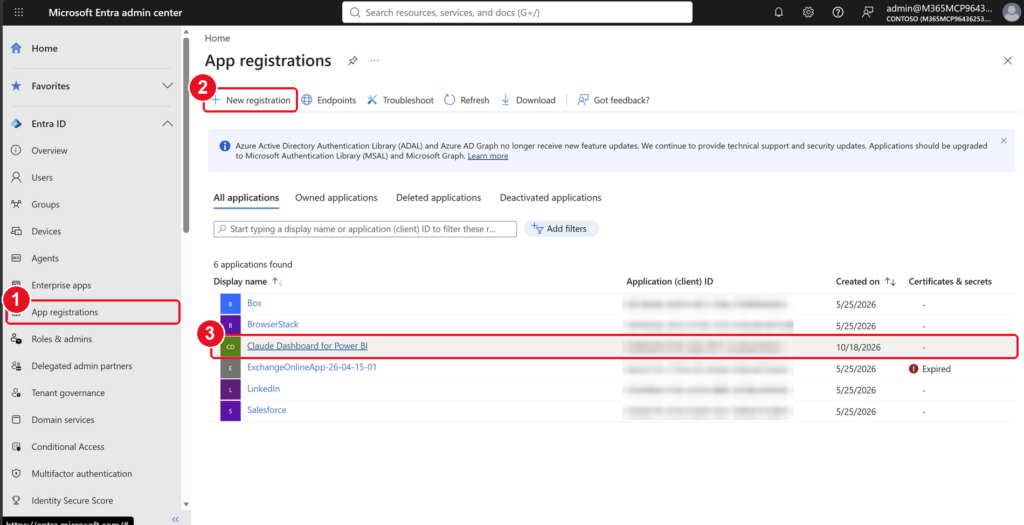
Watch the Entra ID configuration on YouTube at 5:55The first step is to register an application in Microsoft Entra ID. Open Microsoft Entra Admin Centre and follow these steps:
- In the left pane, select App registrations.
- Click New registration.
- Once registered, your application appears in the list. Mine is
Claude Dashboard for Power BI.
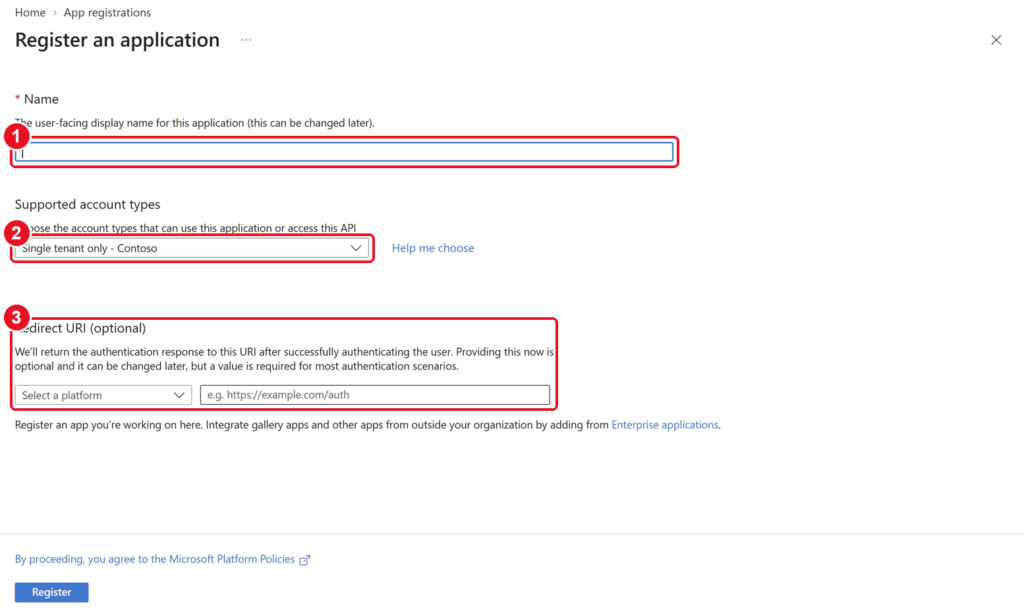
On the Register an application page:
- Enter a name for the application. I named mine
Claude Dashboard for Power BI. - Under Supported account types, select Single tenant only. The registration must be created in the tenant hosting the Power BI environment.
- Leave Redirect URI empty for now. We add it later under Authentication.
Then click Register.
You need permission to register applications. Depending on your organisation’s Entra configuration, standard users may be allowed to register applications, or an administrator may need to perform this step.
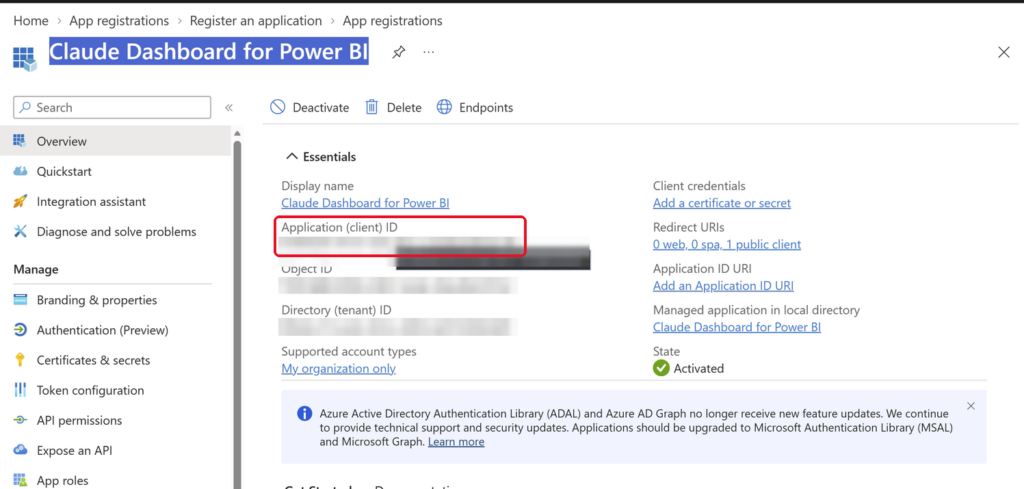
Once registered, copy the Application (client) ID from the application’s Overview page. We need it when configuring the connector in Claude.
Configure the API permissions #
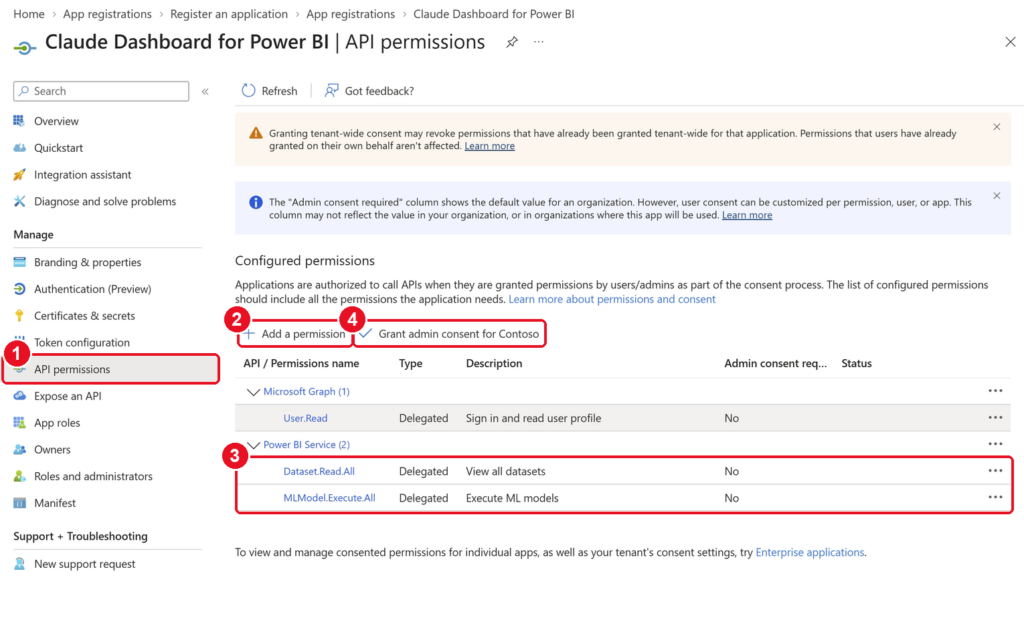
Next, the application needs delegated Power BI permissions. Open the application registration and follow these steps:
- In the Manage section of the left pane, select API permissions.
- Click Add a permission, select Power BI Service, then choose Delegated permissions. Find each permission you need, tick it, and click Add permissions.
- The added permissions appear under Power BI Service:
Dataset.Read.AllandMLModel.Execute.All. - Click Grant admin consent for Contoso. Contoso is the name of my test tenant; you will see your own organisation’s name here.
The quickest way to find a permission in step 2 is the search box. For example, typing ml finds MLModel.Execute.All:
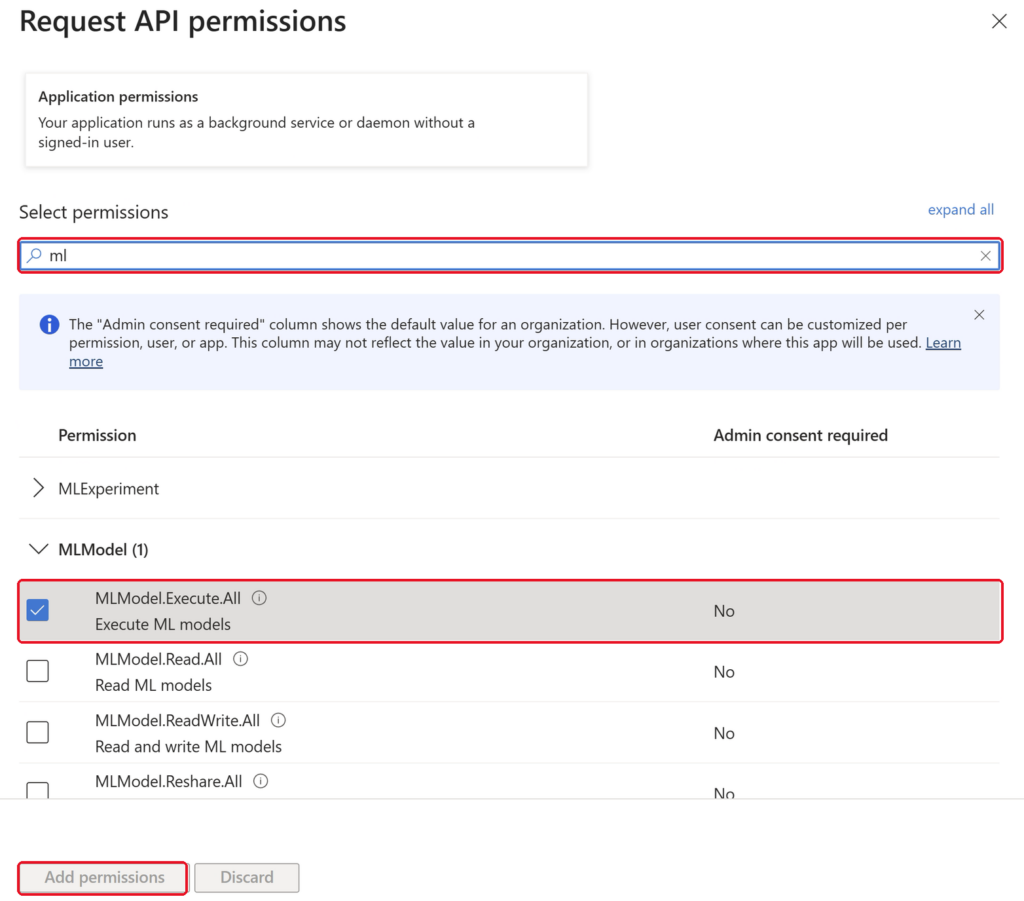
These are the two permissions I ended up with:
| Permission | Purpose |
|---|---|
Dataset.Read.All | Read semantic models available to the signed-in user |
MLModel.Execute.All | Execute ML models |
There is a detail around the documentation worth pointing out here. The Power BI Consumption MCP server setup page lists Build permission on the semantic model, but does not list Workspace.Read.All. The separate guide for registering the hosted servers with external MCP clients does list that delegated API permission for both the Consumption and Authoring servers. Both pages refer to the same Consumption endpoint used in this blog. My tested setup worked without Workspace.Read.All, so I removed it, but this does not prove that every operation works without it. Also, this API permission is different from giving a user a workspace role. During the recording, I noticed that I had granted SemanticModel.ReadWrite.All by mistake. The external-client guide lists it for the Power BI Authoring MCP server, so I removed it from this consumption-only setup too.
This is something I always suggest checking when registering an application. We should only give it the permissions it needs for what we are building.
Depending on your tenant’s consent policies, you may also need administrator consent. In my test environment, I granted it in step 4 so the consent process would not interrupt the sign-in.
Configure the redirect URI #
Next, we need to configure the authentication callback URL.
- In the left pane, select Authentication.
- Add a redirect URI for the Mobile and desktop applications platform, using:
https://claude.ai/api/mcp/auth_callback
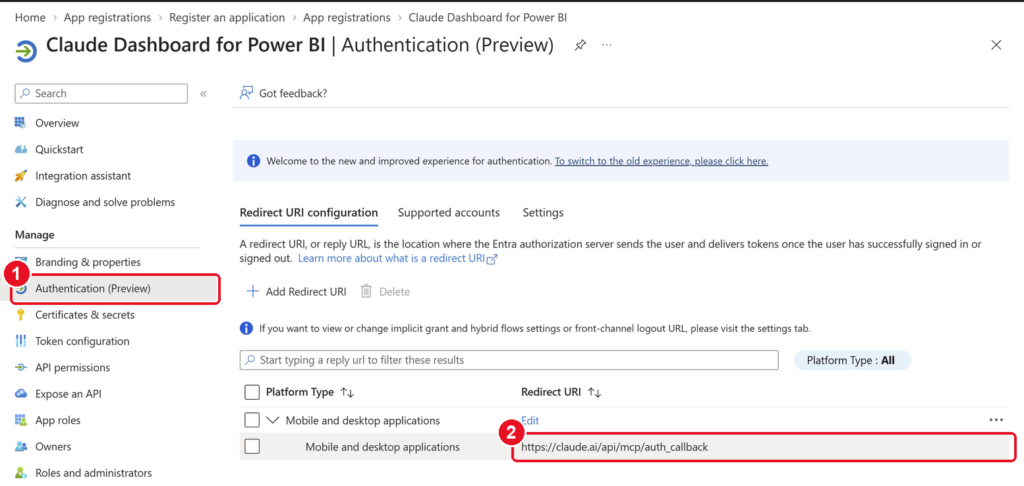
This URL takes us back to Claude after completing the Microsoft sign-in. Make sure the redirect URI matches what the MCP client expects. If this URL is incorrect, the sign-in will fail.
For a detailed explanation, see the Microsoft Learn documentation on registering Power BI MCP servers with external clients.
Step 2: Enable the Required Microsoft Fabric Settings #
Watch the Fabric Admin Portal configuration on YouTube at 10:15Now that the application has been registered, we need to configure Microsoft Fabric. Open Microsoft Fabric, click the settings icon, and navigate to the Admin Portal. In my test environment, I enabled two settings.
Power BI Model Context Protocol Server #
- Type
mcpin the search box. - Expand Users can use the Power BI Model Context Protocol server endpoint (preview) and switch it to Enabled.
- Click Apply.
This enables users covered by the tenant setting to connect to the Power BI MCP endpoint.
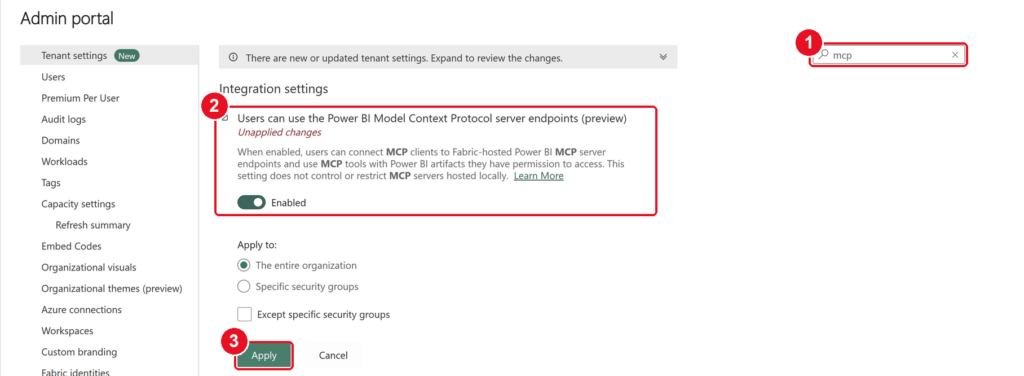
One correction from the video: I initially referred to this as the Fabric MCP server. The endpoint used in this experiment is specifically the Power BI Consumption MCP server, not the general Fabric MCP server.
Semantic Model Execute Queries REST API #
The second setting I enabled was:
Semantic Model Execute Queries REST API
This is the Power BI REST API capability for executing DAX queries against semantic models.
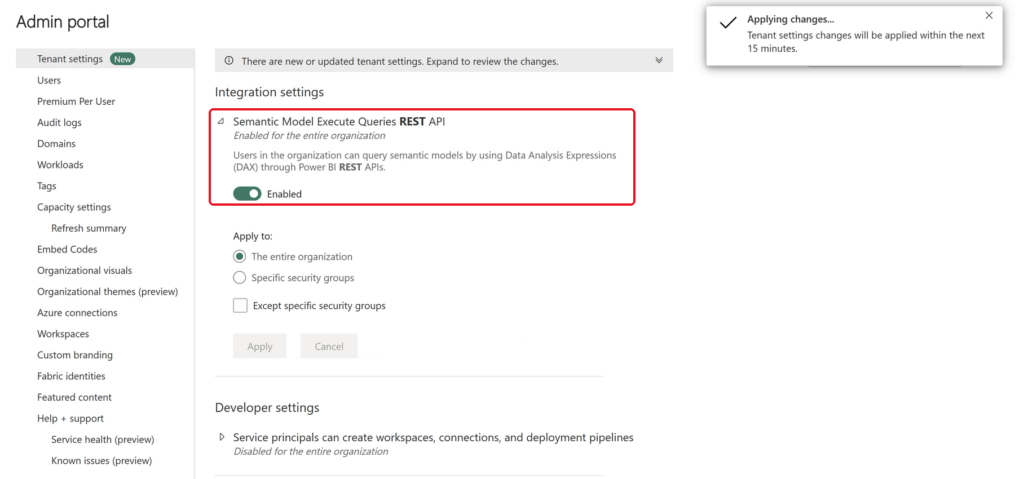
I had both settings enabled in my test environment. The MCP setup documentation specifically lists the MCP tenant setting as a requirement. So, having both enabled in my test does not tell us that the REST API setting is also required for every MCP configuration.
For testing, I enabled the settings for the entire organisation because I was using a dedicated test tenant. For a production tenant, I suggest limiting these settings to a controlled security group where possible. In my case, enabling them for everyone was only for testing.
Step 3: Create a Custom Connector in Claude #
Watch the connector configuration on YouTube at 11:45Now that we have finished the configuration on the Microsoft side, let’s connect Claude to Power BI.
I used Claude Desktop on Windows, although custom connectors are available through the Claude web experience too.
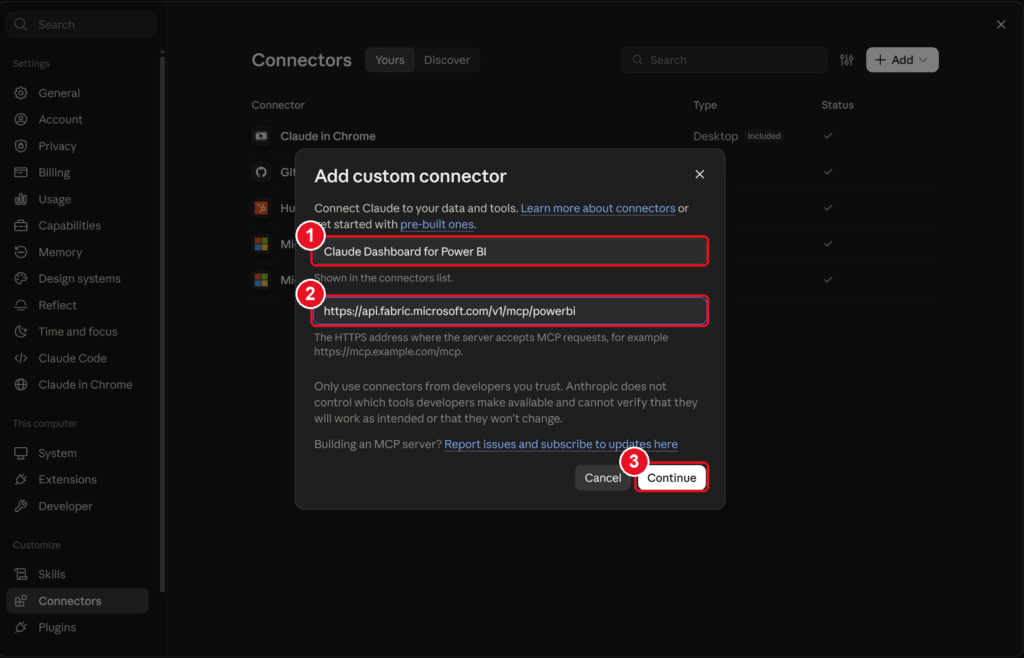
Open Settings > Connectors > Add custom connector.
Give the connector the same name as your Entra application. In this example, use:
Claude Dashboard for Power BI
For the remote MCP server URL, enter:
https://api.fabric.microsoft.com/v1/mcp/powerbiThis is Microsoft’s hosted Power BI Consumption MCP server endpoint. Do not confuse it with the Power BI Authoring MCP server, which uses a different endpoint and serves a different purpose.
In the Add custom connector dialog:
- Enter the connector name.
- Enter the remote MCP server URL.
- Click Continue.
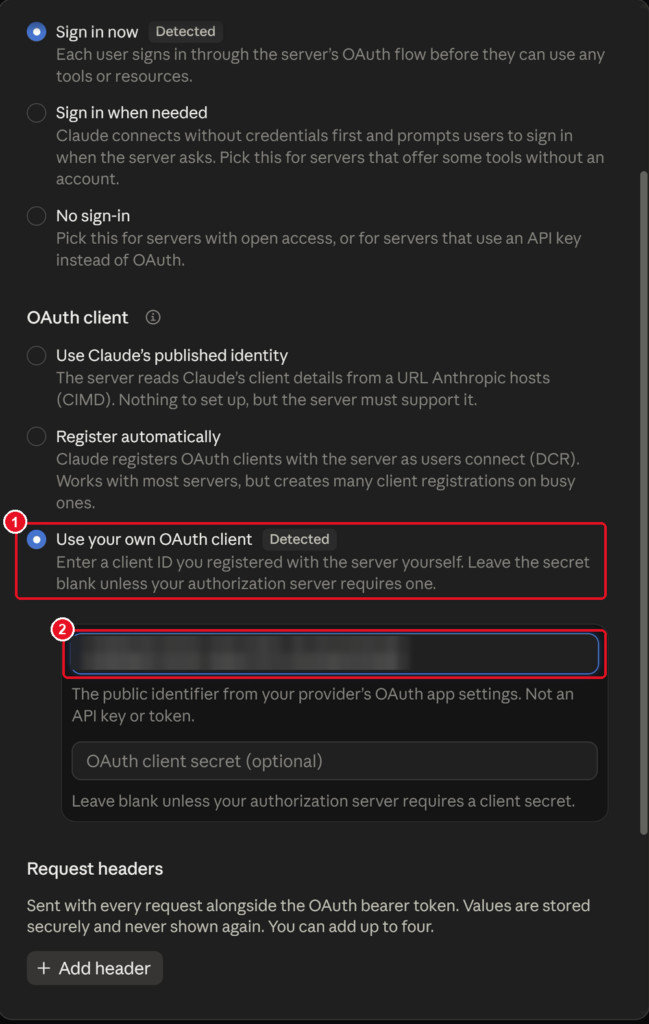
On the next page:
- Under OAuth client, select Use your own OAuth client.
- Paste the Application (client) ID copied from the Entra application registration. The client secret can stay blank.
Then click Add.
Claude will then guide you through the Microsoft authentication process. Once connected, we can choose whether Claude can run the tools automatically or needs to ask for permission first.
Review the tool permissions and choose which tools can run automatically. I allowed the relevant tools to run automatically for this test, but choose what is appropriate for your environment.
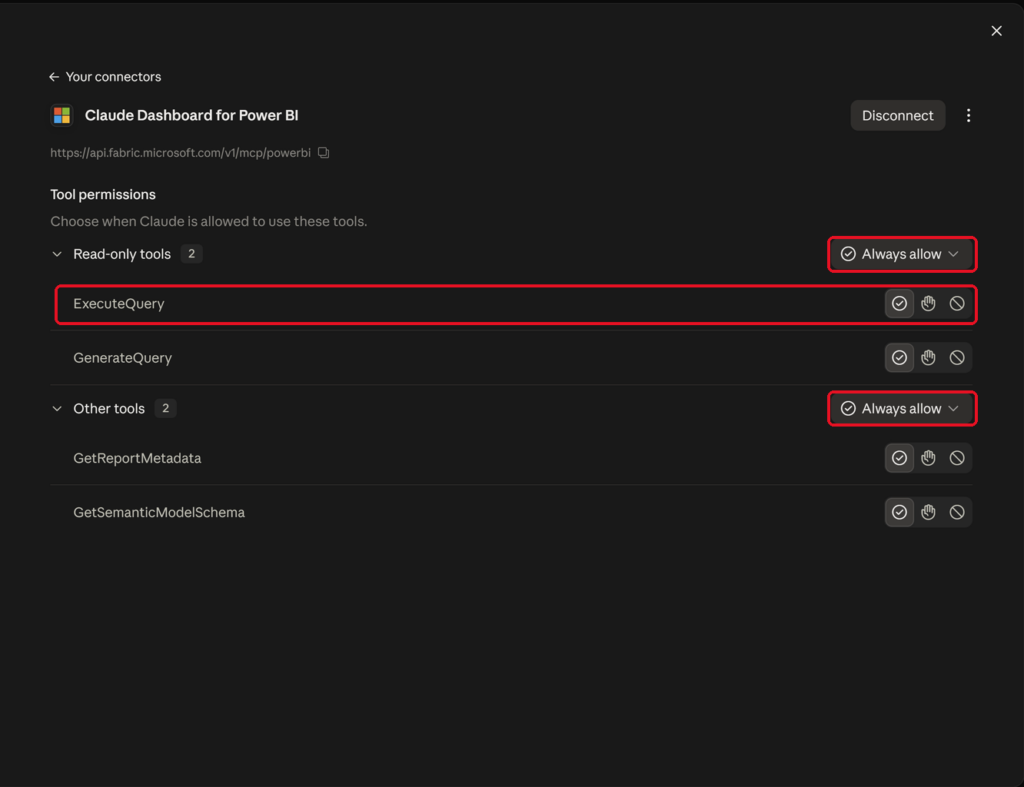
At this point, our connection between Claude and Power BI is ready.
Step 4: Build an Interactive Dashboard Using a Prompt #
Watch the dashboard creation on YouTube at 13:30Now comes the interesting part. Let’s build the dashboard. In Claude, start a new dashboard:
- In the left pane, select Artifacts.
- Under Make something new, select Dashboard (beta).
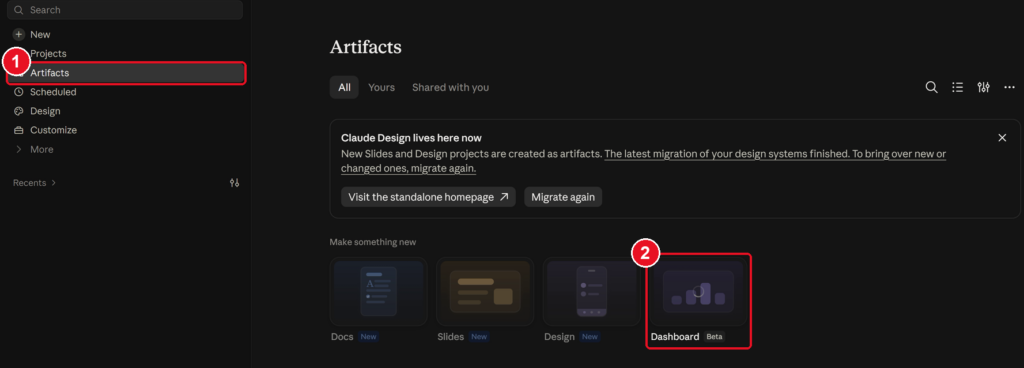
For this experiment, I used an existing semantic model called Sales & Customer Insights, located in the SalesAndMarketing workspace.
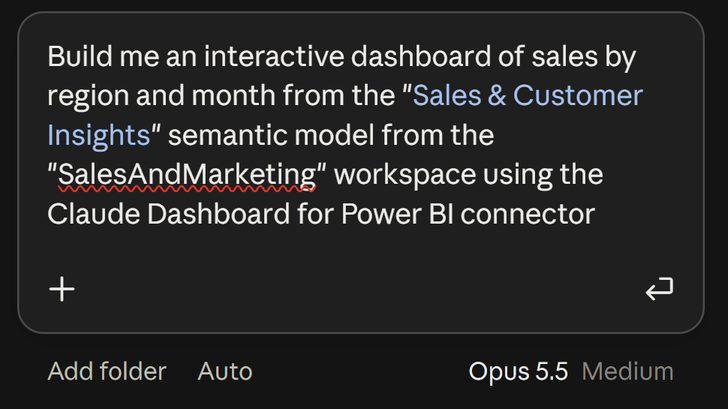
The prompt itself is quite simple. We tell Claude what dashboard we want, which semantic model to use, where to find it, and which connector to use.
Enter the following prompt, replacing the model, workspace and connector names with your own:
Build me an interactive dashboard of sales by region and month from the “Sales & Customer Insights” semantic model from the “SalesAndMarketing” workspace using the Claude Dashboard for Power BI connector
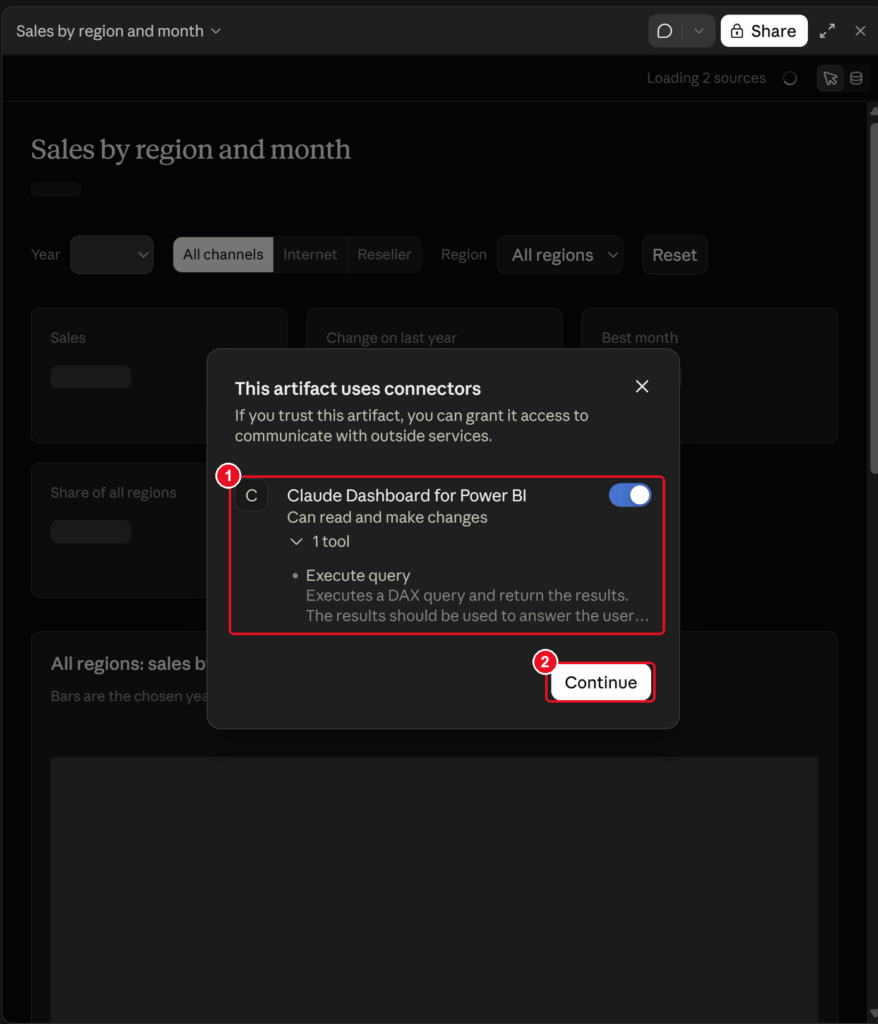
Claude then starts working on the dashboard. This took about seven minutes in my test, so the time may be different in your environment. When the dashboard is ready, review the request to use the connector tools, including the DAX query execution tool:
- The This artifact uses connectors dialog lists the
Claude Dashboard for Power BIconnector and the Execute query tool it uses. Leave the connector switched on. - Click Continue.
After approving the connection, check the dashboard’s sales visualisations and filters. Select a country, such as Germany or the United Kingdom, and check how the data changes in other parts of the dashboard. In my test, these selections updated the displayed data.
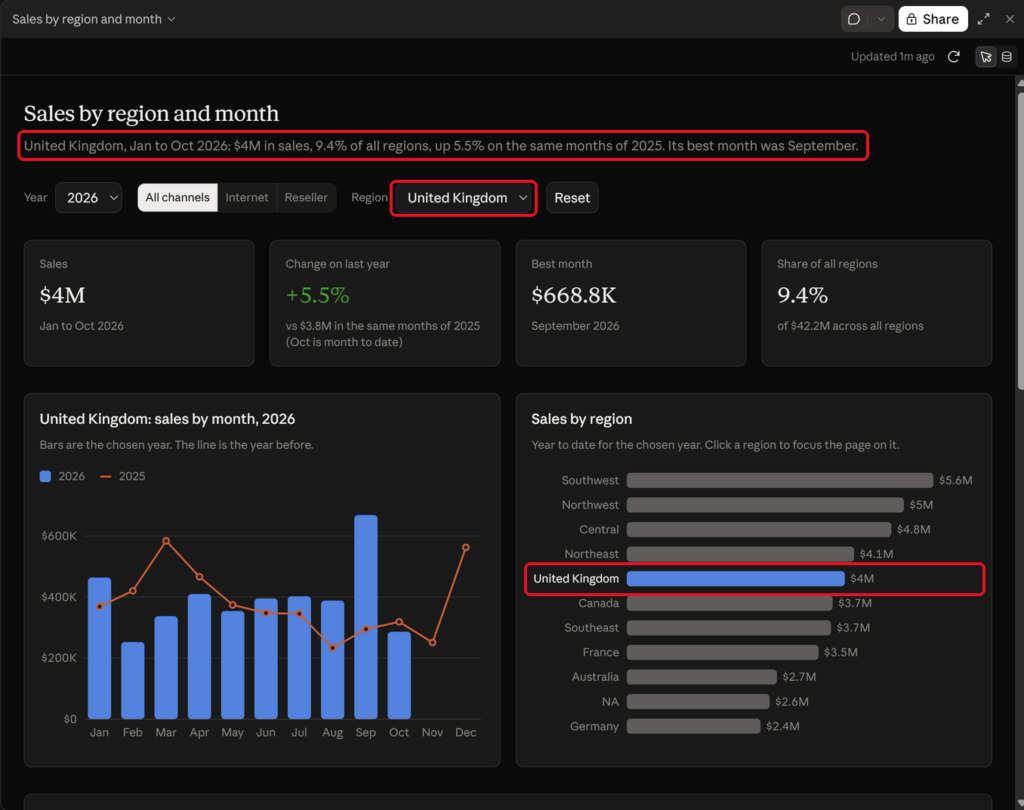
However, some interactions did not initially behave as I expected. One of the region comparison visuals, for example, did not respond in the same way as the other charts. So, we can build an interactive dashboard by describing what we want, but we still need to check how each interaction works. Getting the dashboard to load is only part of the work.
Step 5: Understanding Row-Level Security #
Watch the RLS investigation on YouTube at 17:00This is probably the most important part of the entire experiment. When we connect Claude to a Power BI semantic model, we expect the security rules we already have to still apply. In particular, if the semantic model has Row-Level Security configured, users should only see the data they are authorised to access.
The good news is that RLS is enforced by the semantic model when DAX queries are executed using an appropriately restricted user identity. However, that is only one part of the security story.
Why the authenticated identity matters #
When we configure our custom connector, we authenticate using an account from Microsoft Entra. The MCP connection then uses that authenticated identity to access the semantic model. So, the RLS rules for that account determine which rows Claude receives.
This means that RLS can work perfectly for the account used by the connector. But what happens when we share the generated dashboard with other users? Before answering that question, let’s configure the permissions and test RLS.
Removing workspace-level permissions #
For this experiment, I used an account called MOD Administrator to connect Claude to Power BI. Initially, this account had administrative access to the SalesAndMarketing workspace. That is an important detail because Power BI does not enforce RLS for workspace Admin, Member or Contributor roles.
To test RLS properly, sign in with another administrator account and remove the connector account’s workspace access, including access inherited through a workspace security group. I used Alex Weber’s account for this step.
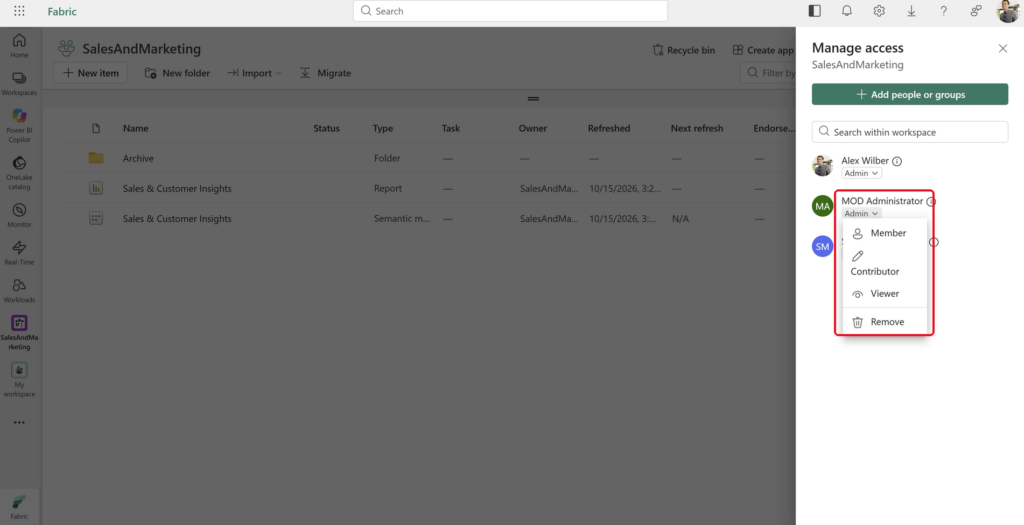
Check that the connector account no longer has a workspace role before continuing.
Granting permissions directly on the semantic model #
Next, open the semantic model’s Manage permissions page and grant the connector account:
- Read permission
- Build permission
Leave the options to modify the semantic model and reshare it unticked.
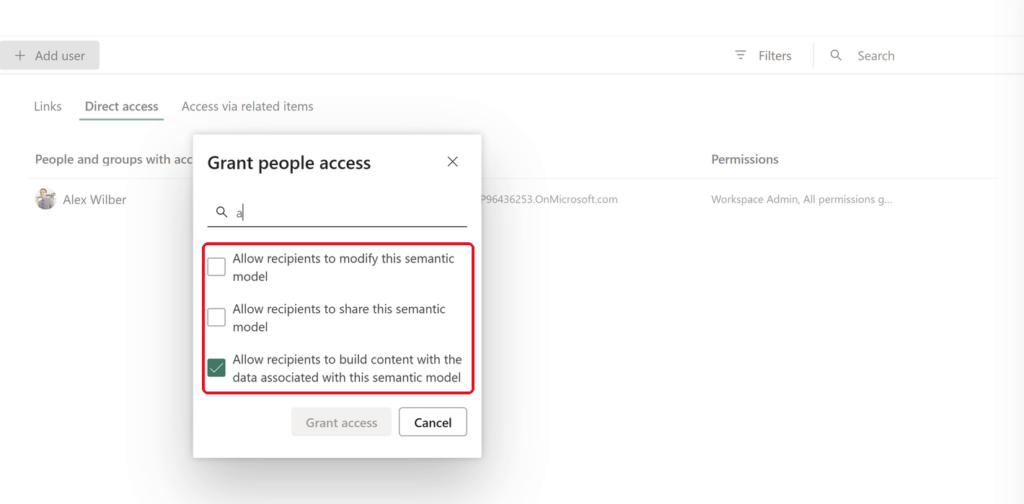
This gives the account the permissions required to query the model through the MCP server without granting access to the entire workspace. This also shows something useful: a user does not need a workspace role to query an individual semantic model if they have the necessary direct permissions on that model.
Build permission is required by the Power BI Consumption MCP server’s Execute Query tool. Read permission alone is not sufficient for this MCP query scenario. Having Build permission does not automatically bypass RLS either. RLS still applies to users with Build permission when they are subject to its rules, as long as they do not have a workspace role or other permissions that bypass model security.

Assigning the RLS role #
Next, configure Row-Level Security. Open the semantic model, switch to editing mode, and select Manage roles on the ribbon.

Assign the connector account to the RLS role you want to test. In this example, the role is called Internet Sales 2026, which restricts the account to data for the year 2026. In the Manage security roles dialog, follow these steps:
- Switch to the Assign tab.
- Select the Internet Sales 2026 role.
- Enter the connector account’s email address and click Add. The account appears under Members.
- Click Save.
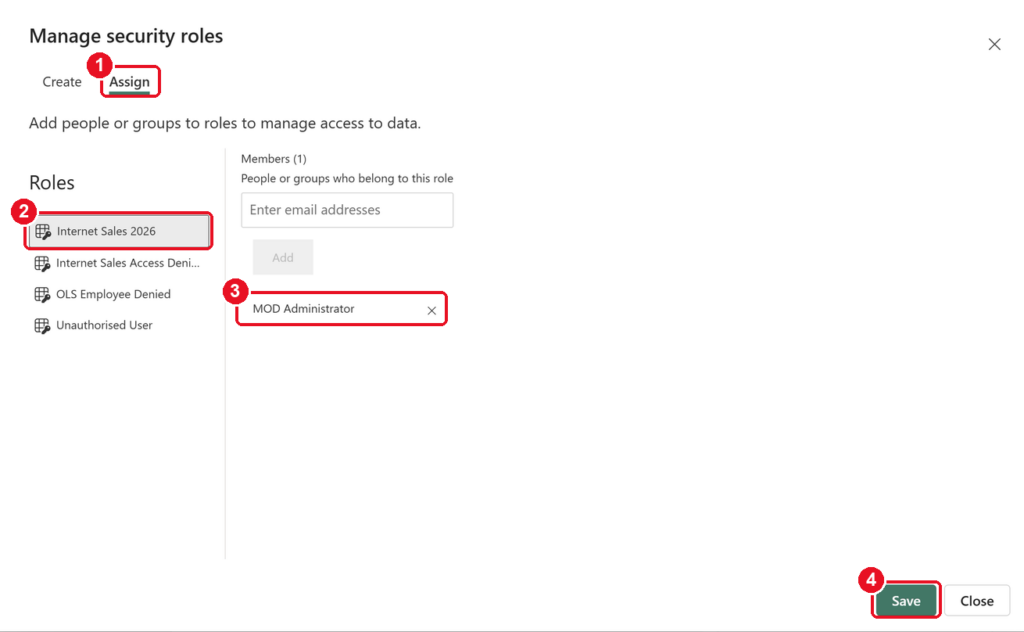
Close the dialog and return to Claude. At this point, the expected result is quite simple. The dashboard should no longer show sales data for previous years. It should only return data for 2026. And that is exactly what happened, but not immediately.
Refreshing the dashboard was not enough #
After assigning the role, refresh the dashboard and check which years are available. In my test, the results did not change at first. From my experience, permission and security changes can take a little time to apply. But in this test, refreshing the dashboard several times did not change the results.
If the results still do not reflect the RLS role, open Claude’s connector settings, disconnect the custom Power BI connector and connect it again. This was the step that worked in my test.
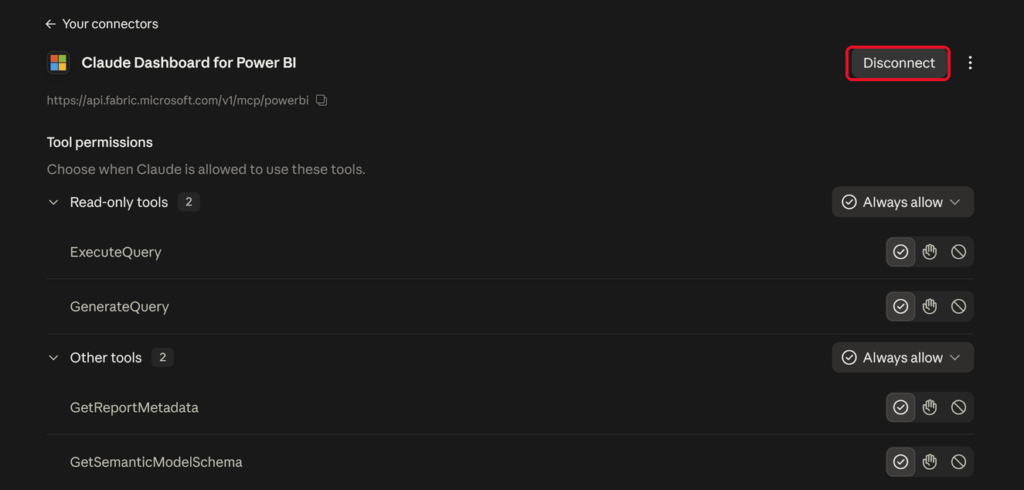
After reconnecting, refresh the dashboard again. This time, the results were restricted to 2026. The year dropdown showed only 2026, which was consistent with the newly assigned RLS role. This confirmed that RLS was working for the account I used to connect Claude to Power BI. You may not need to reconnect every time. It was what worked for me in this test.
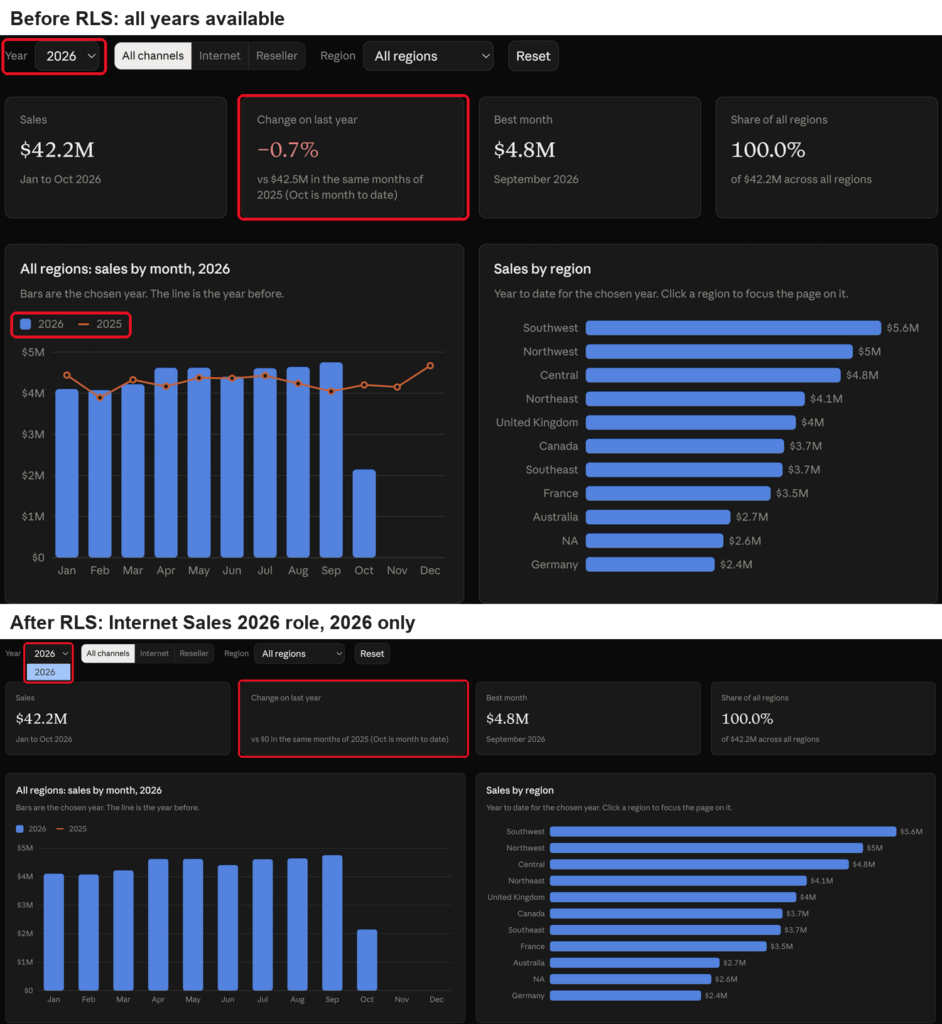
Before the role was assigned, the dashboard could compare 2026 with 2025. Afterwards, the Year dropdown only offers 2026 and the Change on last year card has no 2025 figures to compare against.
The Big Gotcha: RLS, Connector Identity and Sharing #
So far, everything sounds quite good. We have created an interactive dashboard, connected it to an existing semantic model, and verified that RLS can restrict the data returned by the connector.
But there is a critical distinction between RLS working for the connector’s authenticated account and RLS working independently for every person who opens a shared dashboard.
When using Power BI reports, we normally expect each user’s effective identity to be evaluated against the model’s security rules. For example, if two sales managers have different regional permissions, each should see only their own region. A similar expectation exists when sharing a Claude Dashboard backed by a Power BI semantic model.
What I found in my experiment #
The dashboard used the identity authenticated through my custom Power BI connector. When I restricted that identity to 2026, the dashboard reflected that restriction. However, I did not complete a test where each person opening a shared dashboard signed in separately and queried the Power BI semantic model using their own account. However, it is highly likely that the credendials used during the custom connector registration is the one that is used for refreshing the data for the users with the shared link, at least it looks to be the way taht the custom connector architecture works today.
So, we need to be careful with the conclusion here. I confirmed which account my connector used, but this does not prove that every shared Claude Dashboard always uses the author’s account. More importantly, the way the custom connector behaves today, does not necessarily mean it would be the same architecture used when the future official connector for Microsoft Fabric items is available in Claude.
In fact, Anthropic’s current documentation for sharing artifacts says that artifacts using connected applications should use each viewer’s own connections rather than the author’s. That is the intended behaviour, but it still needs to be verified for the particular custom Power BI MCP connector and dashboard configuration we are using.
Before using this in production, I would test it with at least two users who have different RLS assignments. I would also want to confirm what happens when a user has no access to the underlying semantic model. Until that test works as expected, I would not assume that sharing a working dashboard means each user’s data security is also working correctly.
The point here is that we need to check whose account runs the queries and which security rules apply, not just whether the dashboard looks right.
Step 6: Can We Connect Claude to Multiple Microsoft Fabric Tenants? #
Watch the multi-tenant test on YouTube at 25:20Another question I had was whether we can create multiple custom connectors in Claude, each pointing to a different Microsoft Fabric tenant. This would be quite useful for consultants working with different customer environments. In Power BI and Microsoft Fabric, switching between different tenants is quite common. Ideally, we would be able to create separate Claude connectors for each tenant.
However, I came across another limitation in my test. When I tried to register a second custom connector using the same Power BI MCP endpoint:
https://api.fabric.microsoft.com/v1/mcp/powerbi
Claude showed a message saying that the URL already existed in the organisation.
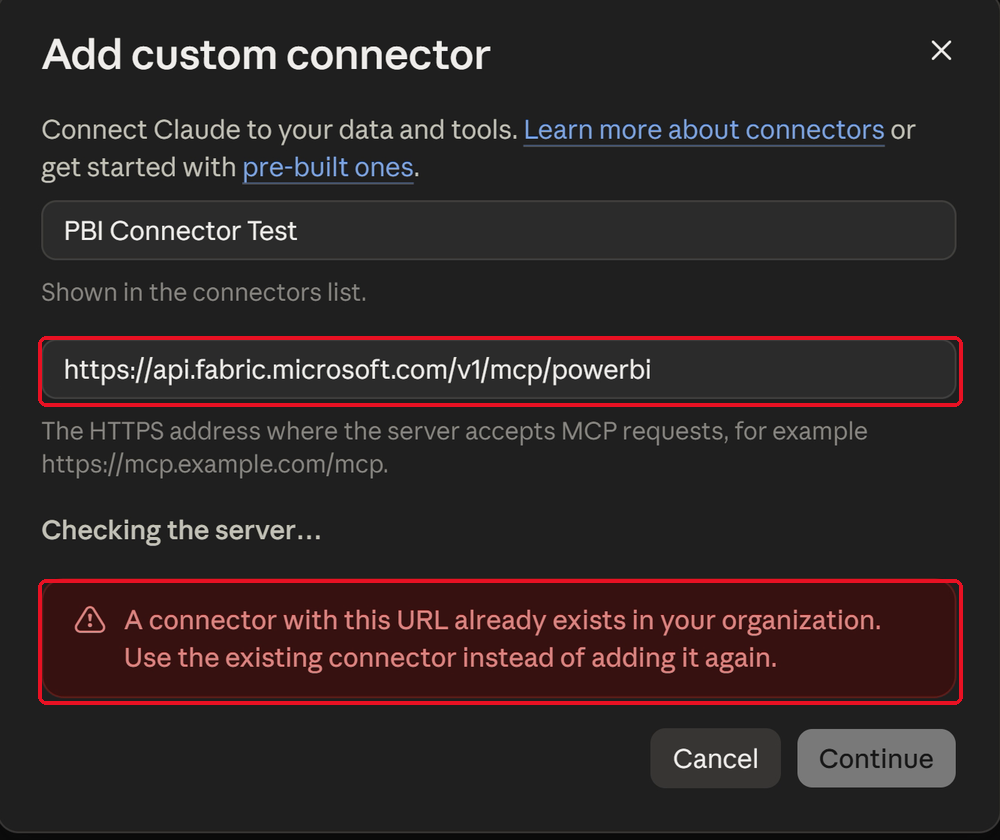
The issue is that the hosted endpoint is the same regardless of which Microsoft Fabric tenant we want to access. In my tested configuration, Claude would not allow me to register another custom connector using the identical MCP server URL. I also could not find a supported way to add a tenant-specific identifier to the MCP URL so Claude could tell the connectors apart.
Is there a workaround? #
While recording the video, another idea occurred to me. Microsoft has several MCP servers with different endpoints, and some have overlapping capabilities. Perhaps we could use a different compatible endpoint for another tenant.
However, I did not test this approach, so I cannot confirm that it works. We should also remember that different MCP servers may expose different tools and security requirements. Using another endpoint is not necessarily an equivalent replacement for the Power BI Consumption MCP server.
So, in my test, I could not register separate connectors for different tenants using the same Power BI MCP endpoint in Claude. That is the limitation I came across with this setup. It does not tell us whether another approach could support multiple tenants.
Step 7: Inspecting the DAX Queries Generated by Claude #
Watch the DAX query inspection on YouTube at 27:10One feature I quite liked was being able to see what happens behind the visualisations. We can open the dashboard’s data sources and look at the queries and transformations behind the results. This gives us a better idea of what Claude has actually built.
To inspect the queries behind the visualisations, follow these steps:
- Click the data sources button at the top right of the dashboard.
- The Sources panel lists every query behind the dashboard. Click one to see its details.
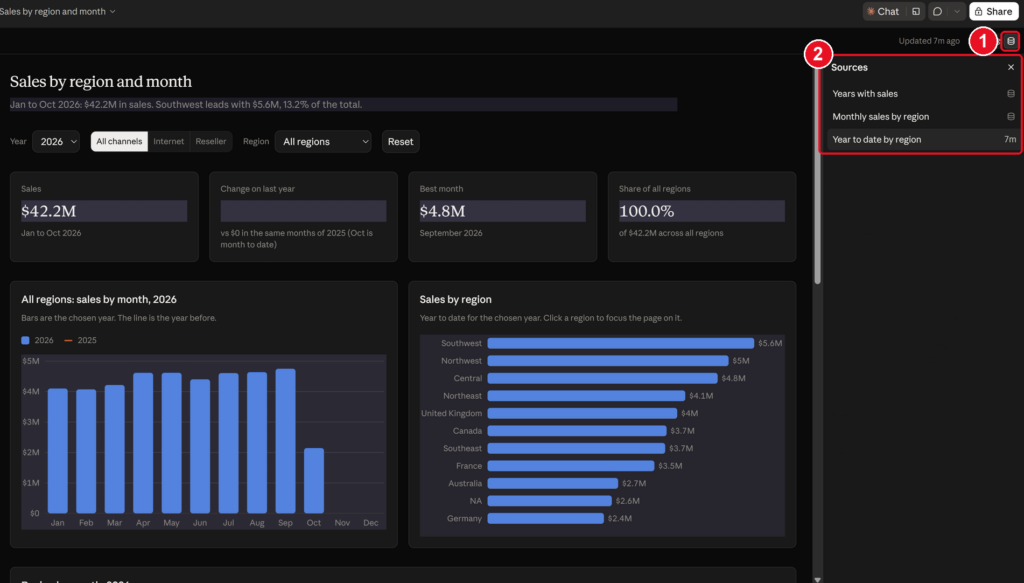
Here, you can see the DAX queries, their returned results and the transformations applied to the data. We can also inspect an individual visualisation to understand which query is responsible for its data. The interface showed a preview of the results, limited to the top 500 records in my example.
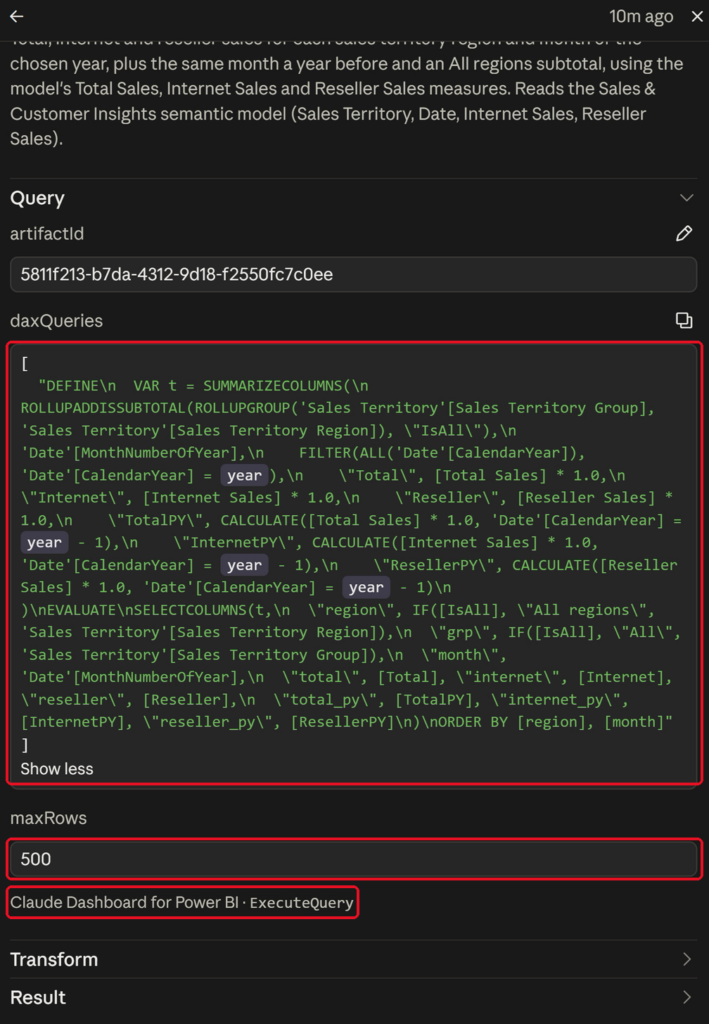
This is useful for troubleshooting, especially when the numbers displayed by a dashboard do not look right. Having said that, being able to see the DAX query does not mean Claude has written it correctly. We still need to verify the logic, check the measures being used, and make sure the returned numbers are consistent with the business definitions in the semantic model.
For me, this is where a well-designed semantic model becomes even more important. When our measures, relationships and business logic are well defined, tools such as Claude have a better starting point to work with.
Claude Dashboards vs Power BI Reports vs Microsoft Fabric Apps #
Watch my comparison and final thoughts on YouTube at 28:00Now that we have a working dashboard, it is time to ask a bigger question. Are Claude Dashboards going to replace Power BI reports? In my opinion, not in their current form.
Power BI reports are much more than a collection of charts. They are part of a mature analytical platform with established capabilities for report development, sharing, security, governance and enterprise distribution.
Claude Dashboards are interesting because they allow us to build analytical experiences very quickly using natural language. But we also need to think about how we secure, deploy, maintain and share that dashboard. Generating it does not automatically give us the same control over those parts.
What about Microsoft Fabric Apps? #
This comparison is more interesting to me. When I built my first Claude Dashboard, it immediately reminded me of Microsoft Fabric Apps. In both cases, we are creating an application-like experience around existing business data.
In my previous blog post, Microsoft Fabric Apps: Business vs Data Apps, What’s the Difference?, I explained how a Fabric Data App can use an existing Power BI semantic model without rebuilding the analytical logic.
Claude Dashboards follow a similar idea, although how they work and what the platform supports are different.
Here is how I would compare these options based on their intended use and my testing:
| Capability | Power BI Reports | Fabric Data Apps | Claude Dashboards |
|---|---|---|---|
| Uses an existing Power BI semantic model | Yes | Yes | Yes, through MCP |
| Natural language dashboard generation | Limited to supported AI authoring experiences | Possible through AI-assisted app development | Yes |
| Custom application-like interface | Limited by report design capabilities | Yes | Yes |
| Interactive visualisations | Extensive native support | Custom application interactions | Possible, depending on generated dashboard |
| Semantic model RLS | Established per-user security model | Supported through underlying model identity and permissions | Supported for authenticated connector identity; shared-viewer behaviour needs validation |
| Sharing and access control | Established Power BI mechanisms | Fabric App and semantic model permissions | Claude artifact and connector access; validate the end-to-end behaviour |
| Multiple tenant scenarios | Supported through Microsoft tenant access patterns | Depends on app architecture and deployment | Not achieved in my connector test |
| Production suitability | Mature reporting platform | Depends on application requirements and maturity | Best treated as exploratory until the full solution is validated |
One difference we need to pay attention to is the permissions on the semantic model. For a Fabric Data App, Microsoft changed the permission requirement for consumers. Read permission is now enough in the supported sharing scenario, while the author still needs Build permission. The Power BI Consumption MCP server used by Claude requires Build permission for its Execute Query tool. So, while both approaches can use the same underlying semantic model, we should not assume they have identical security and permission requirements.
When Would I Use Claude Dashboards? #
With all these limitations, I can still see some useful scenarios for Claude Dashboards. For example, an analyst or consultant could use Claude to quickly explore an existing semantic model, build a dashboard for a specific question, or experiment with different ways of visualising business information.
This can be particularly interesting when we already have a governed semantic model with well-defined DAX measures. Instead of starting with an empty report canvas, we can describe what we want to analyse and then check the results. I can also see myself using it to build a quick prototype before deciding whether the final solution should be a Power BI report or a custom application.
However, if the application is going to serve many business users with different security requirements, there is more work to do. I would test authentication, authorisation, sharing, data handling and performance properly before choosing this approach.
The beta looks promising, but getting a prototype working is still a quite different thing from having an analytical application ready for production.
Final Thoughts #
Claude Dashboards are quite impressive. In this experiment, I connected Claude to an existing Power BI semantic model, generated an interactive sales dashboard using a simple prompt, inspected the DAX queries, and verified that Row-Level Security was applied to the account authenticated through the custom connector.
I also showed that the account did not need access to the workspace. Giving it Read and Build permissions directly on the semantic model was enough for this MCP consumption scenario.
But I also came across some challenges. I had to register an Entra application, configure delegated API permissions, change the Fabric tenant settings and create a custom connector. I also had to test the dashboard interactions. The security changes only showed in the dashboard after I reconnected the connector. I could not get separate connectors working for multiple tenants, and I still need to test which account is used for each viewer when sharing.
None of these findings mean Claude Dashboards are not useful. They do show why we need to be careful about treating a working dashboard as an analytical solution ready for production.
Would I use Claude Dashboards for my own analytical exploration and prototyping? Absolutely.
Would I replace my existing Power BI reporting environment with them today? No.
And would I consider them a potential competitor to some Microsoft Fabric Apps scenarios? Yes, particularly where we want a custom analytical interface built on top of an existing semantic model.
But it is still early days, and it will be interesting to see how these capabilities evolve.
If you have been experimenting with Claude Dashboards, especially with per-user authentication, shared dashboards or multiple Fabric tenants, I would be interested to hear how it went for you. Have you managed to get a different configuration working? Please share your findings in the comments.
Further Reading #
- Register Power BI MCP Servers with External MCP Clients, Microsoft Learn
- Power BI Consumption MCP Server, Microsoft Learn
- Row-Level Security with Power BI, Microsoft Learn
- Get Started with Claude Dashboards, Anthropic
- Share Artifacts, Anthropic
- Microsoft Fabric Apps: Business vs Data Apps, What’s the Difference?, BI Insight
If you found this useful, you can follow me on LinkedIn, subscribe to BI Insight on YouTube, or follow the BI Insight podcast on Spotify. I also share updates on Bluesky and X, covering Power BI, Microsoft Fabric, AI, and the real-world data and analytics problems I come across along the way.
Discover more from BI Insight
Subscribe to get the latest posts sent to your email.
